
OCTOBER 22, 2026 - 4 MIN READ
Introducing task observability in Slingshot
- Cloud Cost Management (FinOps)
- Data Governance
- Data Observability

Jen HuangManager, Product Management, Capital One Software
Snowflake tasks keep your pipelines running on schedule, but when one fails, slows down or starts costing more than expected, tracing the cause usually means jumping between run logs, warehouse metrics and query history just to piece together what happened.
Today, we're excited to introduce two new capabilities in Capital One Slingshot to address this challenge: Task Listing and Task Details.
Our Task Listing brings every task across your Snowflake accounts into a single, sortable view, so you can see which ones are driving cost, failing or drifting in performance without hunting through separate reports. Task Details gives every task its own detailed view, combining cost, run history and pipeline context so you can go from noticing a problem to understanding it in a few clicks.
Here's a closer look at how both features work.
See cost and health across every task with Task Listing
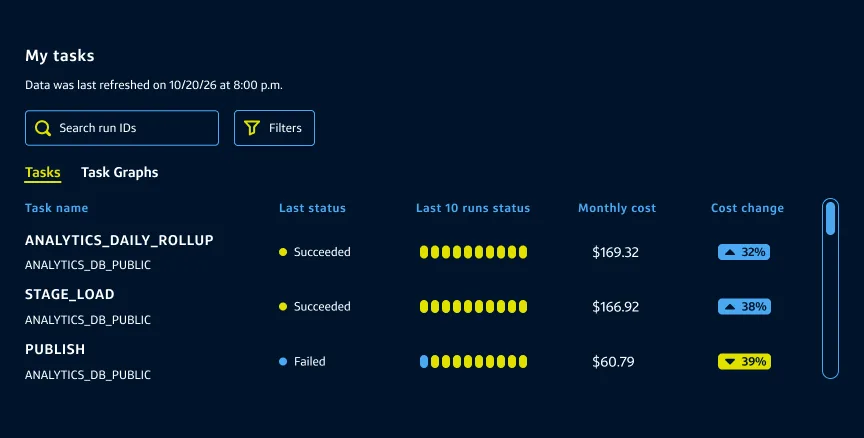
Slingshot’s Task Listing page puts every task you can access into one table. Search by task name, task ID or account and filter by status, warehouse, owner or account to narrow a long list fast.
Track cost at a glance: See monthly cost, cost per run, 30-day change in cost and each task's share of total task spend, all without leaving the list.
Catch problems early: Last run status and the outcome of the last 10 runs give you an instant read on reliability, while P50/P95 duration flags tasks that are quietly drifting slower.
Jump to related context: Each task links to its details page, and the warehouse column links straight to that warehouse's own details.
Export for reporting: Download the full table, including links back to each task, to share outside Slingshot.
With Tasks, you don't have to dig through your Snowflake accounts one at a time to find what's driving cost or reliability issues. Sort by any column and the worst offenders rise straight to the top.
Diagnose failures and slowdowns with Task Details
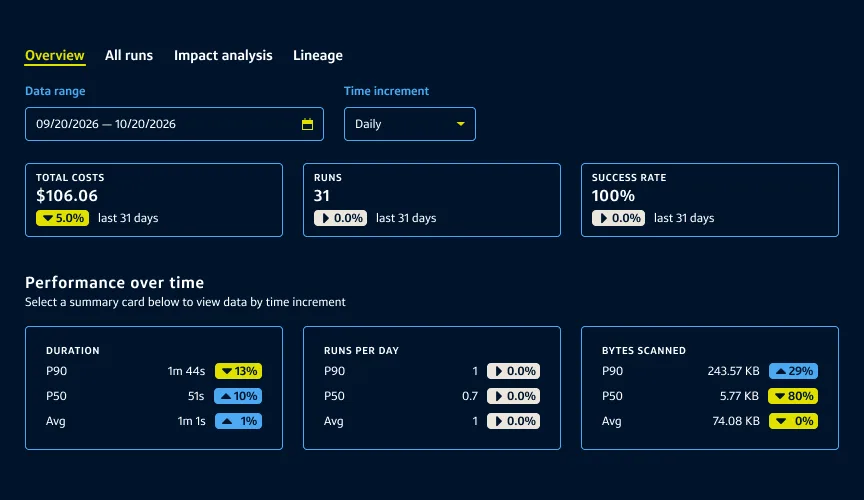
Task Details shows you exactly what a task has been doing over time, combining run history, query metrics and pipeline context in one place.
Watch trends over time: The Overview tab highlights duration, runs per day, cost and bytes scanned against your selected date range. You can drill into runs per day or week to find individual “problem runs” to investigate.
Audit every run: The All runs tab gives you an individual run log where any run can be associated with the queries it triggered. Runs over twice the P90 duration are flagged automatically, and you can filter for failed runs and see the reason for failure.
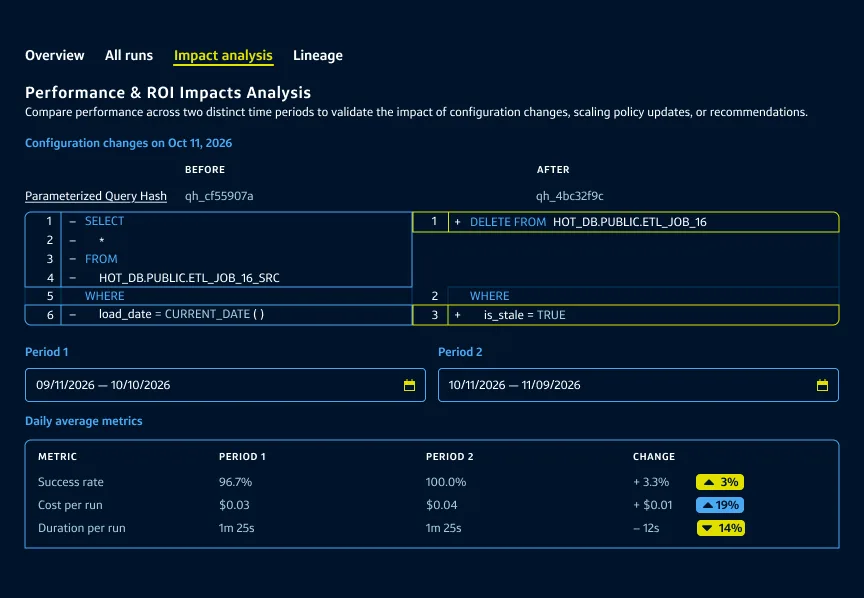
Compare before and after: Impact Analysis lets you pick two time periods and compare success rate, cost per run, duration, spillage, and cost per terabyte scanned side by side.
Trace multi-task pipelines: The Lineage tab shows the task's DAG with average duration and cost labeled on each node and the critical path highlighted.
Alongside the charts, a sidebar keeps everything you need for context in one place, including:
When the task last ran and whether it succeeded, how often it's run over the past six months, who owns it and which users or roles have triggered it.
The warehouse it runs on or the queries it's associated with.
The task’s schedule and timeout settings.
A history of schedule or warehouse changes over time, each one clickable to see its impact.
With Task Details, you no longer have to guess why a task is slow or expensive. You can go from a single number on a dashboard to the exact run, query or warehouse behind it.
Conclusion
Say a cost alert fires on one of your pipelines. Open Tasks, sort by change in cost and find the task driving the spike. Click into it, and Task Details shows its P90 duration climbing steadily over the past week, with a spillage flag pointing to an undersized warehouse. In a couple of clicks, you've gone from an alert to the exact cause.
Using Task Details makes pipeline troubleshooting fast and task cost analysis easy. By bringing task health into the same place as your warehouse and query monitoring, Slingshot eliminiates the need to switch tools or build custom dashboards to catch pipeline issues.
Jen Huang
Manager - Product Management, Capital One Software
Jen Huang is a product manager for Capital One Slingshot, where she works on object-level observability and warehouse recommendations. She is focused on helping data teams understand and optimize their Snowflake environments at scale. Before moving into product management, Jen worked as a strategy consultant at Capital One, where she developed a foundation in enterprise strategy that shapes how she thinks about product decisions at scale.
Footnotes
DISCLOSURE STATEMENT: © 2026 Capital One. Opinions are those of the individual author. Unless noted otherwise in this post, Capital One is not affiliated with, nor endorsed by, any of the companies mentioned. All trademarks and other intellectual property used or displayed are property of their respective owners.